 |
 |
|
August 2005
|
issue 5.04
|
|
On Track
|
|
about this newsletter
On Track is a publication for users of Advanced Tracker solutions. Its goal is to provide news, tips, and information to help you be more productive.
- Unlimited Help Desk Support
- Open Shifts
- Employee Tracker Service Pack 5.3
- Adding an Error Record Manually
- Atomic Clock Sync
Information is more valuable when it is shared. Feel free to forward this newsletter to other people. See the end of this newsletter for subscription instructions.
Unlimited Help Desk Support
As you've probably heard by now, we have replaced your old "warranty" program with an all inclusive, unlimited annual help desk support program. This means that when you call for help, you will no longer receive an invoice for it at the end of the month.
Please be sure you have paid your new support invoice to continue to receive timely help desk assistance and software updates.
If you have any questions, you can contact your account manager or Jennifer Franklin at the main number, x226.
We look forward to helping you more in the future.
Open Shifts
When setting up the specifications of a Shift (Setup > Shifts) you have to designate the shift as Open or Closed:
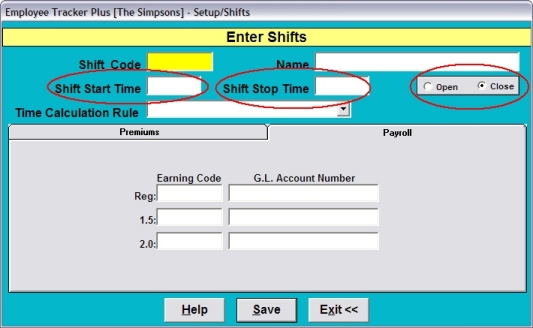
The choice of Open vs Closed will affect how the ATG Retrieval program will interpret the scans, including the assignment of Shift date vs Worked date.
Open shifts are intended for employees who have no set schedule pattern. E.g., a maintenance worker who works whenever the plant machinery breaks down. When the scans are processed the Shift date will fall upon the date of the first scan. Scans will be paired up chronologically if they are within the shift length window setting in ATG.
Closed shifts should be used whenever possible, especially when a shift crosses midnight, or starts near midnight. With a start and stop time defined, ATG can determine what day to apply the worked time to.
Employee Tracker Service Pack 5.3
A new version of Employee Tracker is about to be released. This version, dubbed Service Pack 5.3, contains many new features as well as corrections. We will notify you when it is available, so that you can peruse the Change Notice that will describe all the new and updated features, and decide whether you want to update.
Note that this is a pull release, which means that we will not be automatically sending you the update; you must request it if it contains features you are interested in. You must have an active support contract to receive the update package.
Adding an Error Record Manually
Sometime an employee will forget to scan in at the start of his shift. And either he remembers some time later, or you as the supervisor notice it (possibly because the On-Premise report shows him as AWOL when you can see him right in front of you!). The employee doesn't want to scan in at that point, because it will look like he showed up very late. As the supervisor you can add the record yourself, creating an Error record that will be matched with the employee's Out scan at the end of the day.
Go into Edit Time & Attendance for the employee in question, with the date range including today. Make sure that you have Time and Error records selected in the Record Selection area at the top right of the screen. Click the Add button at the bottom left of the screen. On the Add window, select Time. (Alternatively you could have used the menus at the top of the screen: Utilities > Add Record > Time.) This will show you the Add Time Record window:
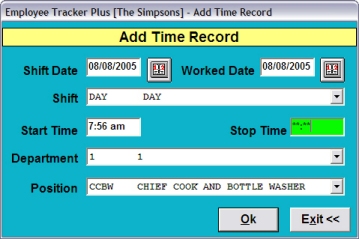
On the Add Time Record window, select today's date as the Shift date. Choose the Shift the employee is working. (The screen will initially show the employee's scheduled shift for the day, or his employee profile default shift.) For the Start time enter the actual time the employee arrived, the time he would have scanned at if he had remembered. For the Stop time enter **:** . It is this special star-star-colon-star-star time that will add this as an Error record instead of a regular Time record. Fill in the rest of the screen with the Department and Position the employee is working. Press OK.
Note that you can use this special **:** time only when Adding a record. You cannot change an existing record from an actual time to **:** .
Thanks to Larry B in Louisville KY for suggesting this article. If you have tips you would like to see in On Track, please send your suggestions to support@advancedtracker.com .
Atomic Time Sync
The punch clocks and scanners get their time-of-day from the computer that runs the retrieval program (e.g., Symcod Retrieval, ATG Retrieval, Standard Retrieval). Therefore it's important that the retrieval computer have the correct time-of-day. If your IT infrastructure doesn't keep all the computers in sync, may we suggest Atomic Clock Sync, a free program that ensures that your computer's clock is accurate. You can download it at www.worldtimeserver.com/atomic-clock/ .
For more information about keeping your clocks accurate, including dealing with daylight saving time, see the article at headoffice.advancedtracker.com/FAQ/TimeSync.pdf .
So What Time Is It?
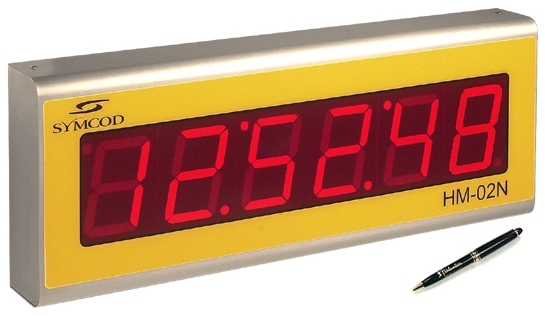
FYI, for the clock-watchers in your shop, we now offer large digital displays that show the current time-of-day, synchronized with your server:
Was That the Lunch Bell?
Many of the devices we offer can be rigged to sound a horn or a bell at times you specify. E.g., a long blast at the start and end of shift, a short blast for breaks, etc. Contact your account manager for details.
about your On Track subscription
This newsletter was sent to ENMEMAIL. To change your email address, unsubscribe from your old address and resubscribe using your new address. See below for instructions.
Back issues of On Track are available online at www.advancedtracker.com/ontrack
To unsubscribe
If you received this newsletter in error, or no longer want to receive it, click here, or send an email to e-news@advancedtracker.com with the word remove in the subject line.
To subscribe
If someone forwarded you this newsletter and you want to start getting your own copy, click here, or send an email to e-news@advancedtracker.com with the word subscribe in the subject line.
Privacy promise: we will not sell, lend, rent, or share your email address with anyone else.
Phone us toll-free at 1-888-531-3774, or 604-531-3774 in the lower mainland. Fax us at 604-535-8013.
© copyright 2005 by Advanced Tracker Technologies Inc.