 |
 |
|
June 2005
|
issue 5.03
|
|
On Track
|
|
about this newsletter
On Track is a publication for users of Advanced Tracker solutions. Its goal is to provide news, tips, and information to help you be more productive with the products.
- Keep Your Staff On Track
- Doing More Work by Default
- Tyler's Tech Tips: Backup Your Data
- CPA Conference in Vancouver
- Scheduling by Seniority
- Provincial Labour Standards
- Contacting Technical Support
Information is more valuable when it is shared. Feel free to forward this newsletter to other people. See the end of this newsletter for subscription instructions.
Keep Your Staff On Track
As a registered subscriber to Tracker support services you are entitled to a 50% discount e-coupon for 2 hours of on-line training on all Tracker products. Must be booked by July 15, 2005 and scheduled in July or August.
- Upgrade your knowledge on new features
- Train back up staff
- Make product more user friendly to your non-technical staff
Promotion price is $149.00. Email Junes@advancedtracker.com to request your e-coupon and schedule training time. Regular training can also be requested at the rate of $150.00 per hour.
Employee Default Rules Are Actually Overrides
In the Employee Profile section of Employee Tracker, on the Defaults page, there are fields labeled Default Time Calc Rule and Stat Holiday Rules. Users will often set these to specific values when they really should not do so. These are employee-level overrides that specify the values that will always be used for this employee regardless of any other settings in other areas of Employee Tracker. Setting these inappropriately can have a major effect on the usability of Employee Tracker.
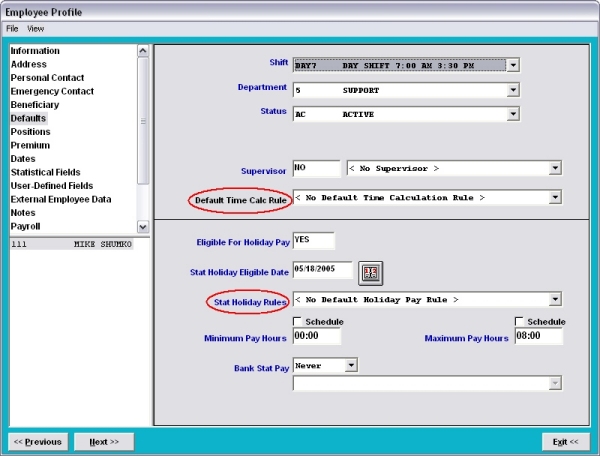
Default Time Calc Rule specifies the Time Calculation Rule that will always be used for this employee regardless of any other setting. It overrides the Time Calculation Rule that would normally be taken from the Shift worked. In general this setting should be used only sparingly, and should usually be set to < No Default Time Calculation Rule >. A valid case of setting this for a specific employee would be for an employee whose contract has a grandfather clause that requires calculations that are unique. E.g., different overtime rules or lunch deductions.
The same is true for the field labeled Stat Holiday Rules. This is an employee-level override that specifies the Holiday Pay Rule that will always be used for this employee during the Holiday Pay Run, regardless of what is specified by the employee's Status or the Holiday itself. Again, in general this should be used only sparingly, and should usually be set to < No Default Holiday Pay Rule >.
Another item that is frequently set incorrectly in the employee's profile is Premiums. Premiums that are defined at the employee level will be applied to all time records for this employee. Therefore the only premiums you should define in the employee profile are those that must always take effect for all hours worked. E.g., first aid training, or lead hand. Almost certainly NOT premiums for afternoon and night shift.
Backup Your Data
Your timekeeping and payroll data is an important company resource. How well protected is it from disasters? Every few months we hear from a customer whose hard drive has crashed, or less frequently, whose computer has been stolen. The pain associated with such an event varies depending on how well prepared they are.
When a hard drive crashes, files need to be restored onto a new drive or maybe even on a new computer. Having a recent backup is critical to the recovery process.
- Use RAID disks. With RAID your data is stored on multiple hard drives at the same time. When a drive crashes, the remaining drives keep operating without loss of data while you replace the broken drive.
- Backup daily. If you backup only weekly, then potentially you may have to re-enter up to a week's worth of transactions. How much data are you prepared to re-key, or lose?
- Backup to a different physical medium. Don't backup to another folder on the same hard drive, or even to another partition on the same physical drive. When the drive crashes, assume that all partitions will be lost. Backup to a different drive, or a different medium such as CD, DVD, or tape.
- Test your backups. Occasionally try to restore some files, just to be sure that the process actually works. It's not enough to backup successfully; you also have to be able to restore successfully.
- Save your backups offsite. In the case of a more serious event such as a flood or fire, if all your backups are in the same room as the computer, everything can be lost at the same time.
This is the first in an ongoing series from Tyler Clutchey, one of the front line support people at Advanced Tracker.
CPA Conference 2005 in Vancouver

The Canadian Payroll Association held its yearly conference in Vancouver this year. Ray Worth represented Advanced Tracker, meeting and greeting the 500+ attendees.
Sandra Korytowski took home the grand prize Advanced Tracker giveaway, an original oil painting from west coast artist Ann Worth.
The next Canadian Payroll Association conference will be in Toronto on June 6-9 2006. See the CPA website for details.
For more of Ann Worth's artwork visit annworthoilpainting.com.
Healthcare Scheduling Enhancement
We have enhanced Employee Tracker to enable you to define seniority as the sort sequence for employees (hire date, seniority date, seniority number). To set seniority sorting, sign in as "Master", launch "Customize Software" from the Utilities menu, and select the "Schedule" tab.
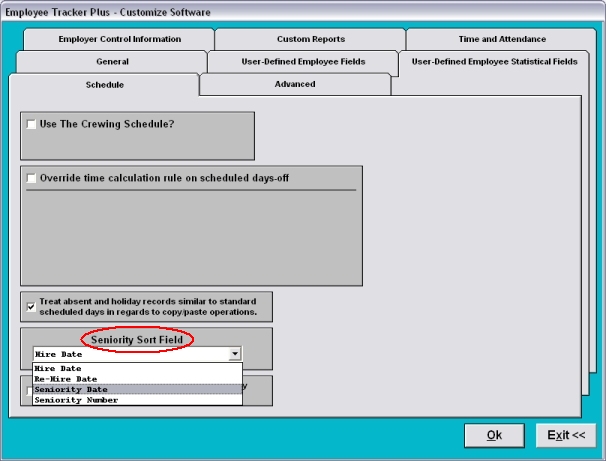
Whichever field you choose to sort on will be shown as a sort choice on the Employee Specification Bucket screen, as well as the substitution list:
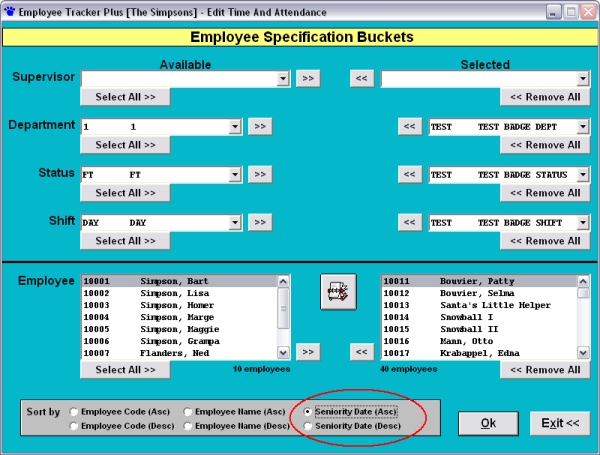
For those of you with seniority based on hours worked, the system will soon dynamically re-calculate seniority based on hours and update the "seniority number" field. For now you would need to maintain the seniority number manually.
Provincial Labour Standards
Keep up with the latest labour standards in your province. About.Com maintains links to all the Canadian Labour Standards, at canadaonline.about.com/od/labourstandards.
Contacting Technical Support
When you contact Advanced Tracker for technical assistance (whether by phone, e-mail, or fax), you can expect a response within two business hours. The support desk is open Monday to Friday from 6:30 AM to 5:00 PM Pacific time. Outside of these hours emergency support is available; call the main number and listen to the instructions. Note that Advanced Tracker follows the BC holiday schedule.
You can call us toll-free at 1-888-531-3774 (or 604-531-3774 from the Vancouver area). Technical support is at extension 226. You can fax us at 604-535-8013. The technical support email address is support@advancedtracker.com.
about your subscription
This newsletter was sent to ENMEMAIL. To change your email address, unsubscribe from your old address and resubscribe using your new address.
Back issues of On Track are available online at www.advancedtracker.com/ontrack
To unsubscribe
If you received this newsletter in error, or no longer want to receive it, click here, or send an email to e-news@advancedtracker.com with the word remove in the subject line.
To subscribe
If someone has been forwarding you this newsletter and you want to start getting your own copy, click here, or send an email to e-news@advancedtracker.com with the word subscribe in the subject line.
Privacy promise: we will not sell, lend, rent, or share your email address with anyone else.
© copyright 2005 by Advanced Tracker Technologies Inc.